
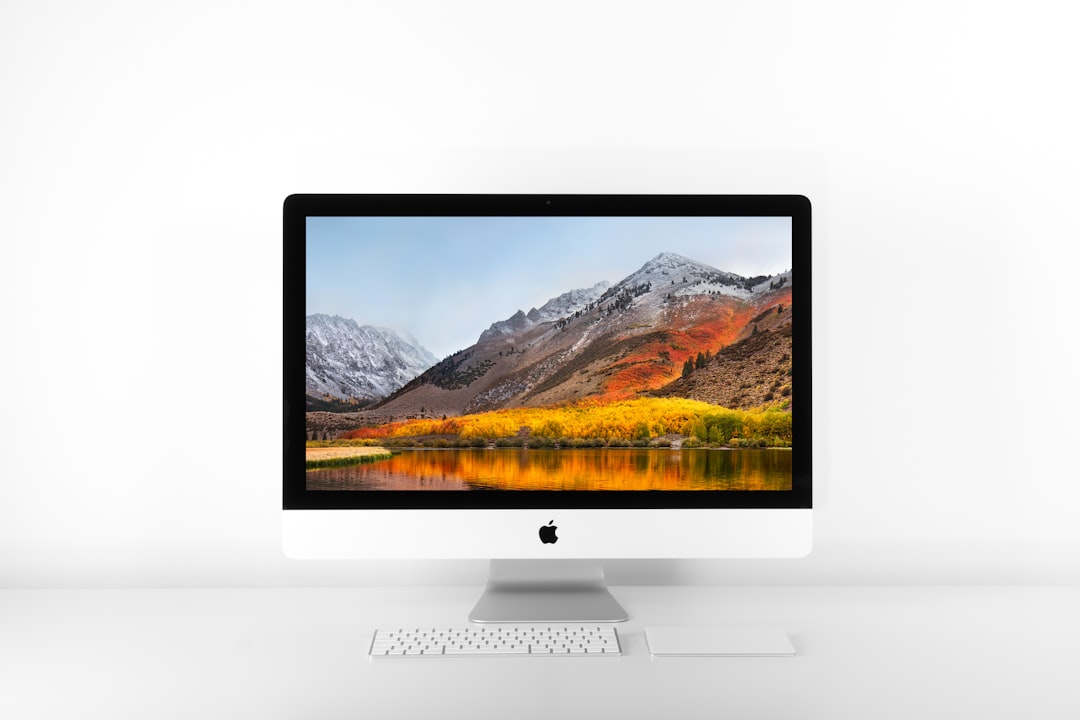
While curated live wallpaper collections offer stunning options, nothing compares to the satisfaction of creating your own personalized animated backgrounds. Whether you want to feature vacation footage, artistic creations, or meaningful moments, custom live wallpapers transform your Mac into a truly unique digital space. This comprehensive tutorial guides you through the entire process, from selecting source material to final implementation.
Selecting Source Material
The foundation of any great live wallpaper is high-quality source material. Start by reviewing your video library for potential candidates. Look for footage with interesting visual elements, good composition, and appropriate length. Ideal videos range from 10 to 60 seconds, providing enough variation without becoming repetitive.
Consider the mood and atmosphere you want to create. Calm, slow-moving scenes work well for productive environments, while more dynamic footage suits creative or entertainment-focused setups. Pay attention to lighting conditions and color balance, as these significantly impact the final wallpaper's visual appeal.
If you're shooting new footage specifically for wallpapers, use the highest resolution your camera offers. Even if you plan to display at 1080p, starting with 4K footage provides flexibility for cropping and ensures maximum quality. Stabilize your camera to avoid distracting shake, and film in good lighting conditions.
Essential Tools and Software
Creating custom live wallpapers requires several software tools, ranging from free options to professional applications. For basic conversions, QuickTime Player and iMovie, both included with macOS, provide sufficient functionality. More advanced users might prefer Final Cut Pro or Adobe Premiere for precise control over editing and effects.
You'll also need a live wallpaper application that supports custom imports. Research available options and choose one with good reviews and regular updates. Many popular applications offer free trials, allowing you to test functionality before committing to a purchase.
Additional utilities like Handbrake for video compression and DaVinci Resolve for color grading can enhance your workflow. While not strictly necessary, these tools help achieve professional results and optimize file sizes for better performance.
Editing and Preparation
Once you've selected source material, begin the editing process. Import your video into your chosen editing application and review it carefully. Identify the most visually interesting segments and trim away unnecessary footage. Remember that wallpapers loop continuously, so smooth transitions between the end and beginning are crucial.
Adjust the aspect ratio to match your display. Most modern Macs use 16:10 aspect ratios, though some models vary. Incorrect aspect ratios result in stretched or cropped imagery that diminishes visual quality. Use your editing software's crop or scale tools to achieve the perfect fit.
Color correction significantly impacts the final result. Enhance saturation for vibrant wallpapers or desaturate for minimal aesthetics. Adjust brightness and contrast to ensure the wallpaper complements rather than overwhelms your desktop icons and windows. Many users prefer slightly muted colors that provide visual interest without distraction.
Apply stabilization if your source footage contains camera shake. Most modern editing applications include stabilization features that smooth out unwanted movement while preserving intentional motion. This step is particularly important for handheld footage.
Optimization and Compression
Raw edited footage often produces files too large for efficient wallpaper use. Proper compression reduces file size while maintaining acceptable quality, ensuring smooth playback and minimal battery impact.
Export your edited video using H.264 or H.265 codecs. H.265 offers better compression but requires more processing power for playback. For maximum compatibility and efficiency, H.264 at high quality settings provides an excellent balance. Set your bitrate based on resolution: 8-12 Mbps for 1080p and 15-20 Mbps for 4K typically produces good results.
Frame rate considerations affect both file size and visual smoothness. While 60 fps creates incredibly smooth motion, 30 fps suffices for most wallpapers and significantly reduces file size. For subtle animations, even 24 fps works well and maximizes efficiency.
Test your compressed video before implementation. Play it full-screen and check for compression artifacts, stuttering, or quality degradation. If you notice issues, adjust your export settings and try again. Finding the optimal compression balance requires experimentation.
Implementation Process
With your optimized video ready, it's time to implement it as a live wallpaper. The exact process varies by application, but most follow similar patterns. Open your live wallpaper application and locate the import or add custom wallpaper function.
Navigate to your prepared video file and import it. The application may process the file, converting it to an optimal format for desktop use. This conversion can take several minutes depending on file size and your Mac's processing power.
Once imported, preview your wallpaper before applying it system-wide. Check that the loop point is seamless and that colors display correctly. Most applications allow you to adjust playback settings like speed, volume, and quality at this stage.
Apply your custom wallpaper and observe how it looks with your typical desktop setup. Open a few applications to see how the wallpaper interacts with windows and icons. You may need to return to editing if the colors clash with your interface or if the motion proves distracting.
Creative Ideas and Inspiration
The possibilities for custom live wallpapers are limited only by imagination. Consider creating seasonal collections that rotate automatically throughout the year. Capture local landmarks or favorite locations to maintain a connection with meaningful places.
Time-lapse photography makes spectacular live wallpapers. Cloud movements, sunset progressions, and urban activity compressed into short loops create mesmerizing effects. Many smartphones now include time-lapse modes that simplify capturing this type of footage.
Abstract animations generated through creative software offer unique aesthetics impossible to achieve with traditional footage. Experiment with particle systems, geometric patterns, or flowing colors to create one-of-a-kind backgrounds that reflect your artistic vision.
Collaborate with creative friends or family members. A custom wallpaper featuring artwork from a loved one adds personal meaning to your digital workspace. Similarly, footage from shared experiences creates constant reminders of important relationships and memories.
Sharing Your Creations
Once you've mastered custom wallpaper creation, consider sharing your work with the community. Many platforms welcome user-submitted wallpapers, and seeing others enjoy your creations provides genuine satisfaction.
Before sharing, ensure you have rights to all source material. Original footage you've captured is yours to share, but using copyrighted content without permission violates intellectual property laws. When in doubt, create entirely original work or use properly licensed materials.
Provide clear descriptions when sharing wallpapers. Include information about resolution, recommended display types, and any specific aesthetic considerations. This context helps others determine if your wallpaper suits their needs.
Conclusion
Creating custom live wallpapers empowers you to personalize your Mac in ways pre-made collections cannot match. While the process requires some technical knowledge and creativity, the results justify the effort. Each custom wallpaper tells a story, evokes memories, or expresses artistic vision in ways that transform your computer from a tool into a canvas.
Start with simple projects and gradually expand your skills. As you become comfortable with the workflow, experiment with advanced techniques like color grading, effects, and complex editing. The journey from novice to skilled wallpaper creator offers both practical benefits and creative fulfillment, making your Mac truly yours in every sense.